
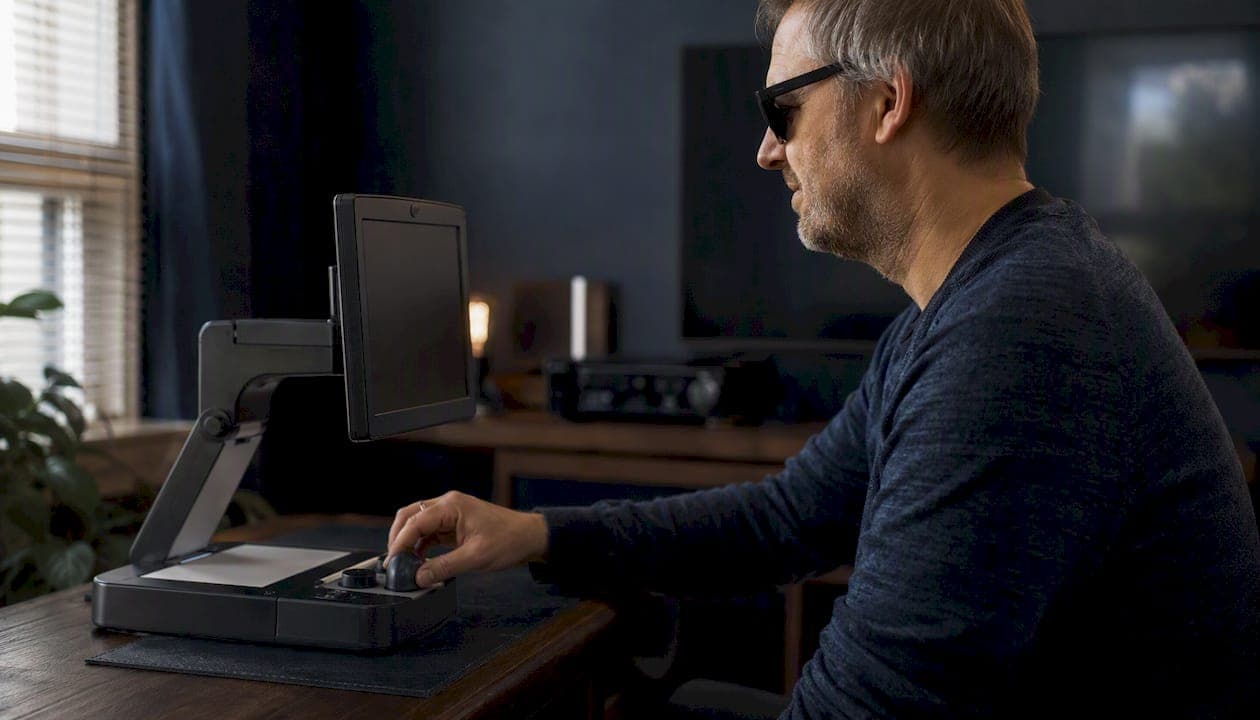
Screen magnification limitation, in plain terms, is the unavoidable trade-off built into the technology itself: every increase in zoom level shrinks the visible portion of the screen, forcing users to navigate more, remember more, and interact with less context at once. That core constraint cascades into a set of real, measurable usability problems that affect everything from reading a PDF to clicking a menu.
The highest-impact limitations you'll encounter:
- Loss of spatial context: At high magnification, you see only a fraction of the page, making it easy to lose your place entirely.
- Two-direction scrolling: When content doesn't reflow, you scroll both horizontally and vertically, which is exhausting and disorienting.
- UI element inaccessibility: Ribbons, dropdown menus, and small controls often fall outside the current viewport and are hard to reach.
- Cursor and caret tracking problems: The text cursor or mouse pointer can disappear off-screen mid-task, breaking editing and navigation flow.
- Performance issues and flicker: Screen magnifiers can lag on high-resolution displays or during video playback, causing visual instability.
If you're a low-vision user looking for practical settings and workflows, jump to the practical tips section. If you're a developer or accessibility specialist, the WCAG-linked checklist and the evidence section are where you'll get the most traction.
Key Takeaways
Screen magnification's core limitation is geometric: every increase in zoom level reduces visible context and increases the panning burden, and no software feature fully escapes that trade-off.
| Point | Details |
|---|---|
| Reflow is the highest-priority fix | Content that rewraps at 400% zoom eliminates two-direction scrolling, the most disabling magnification barrier. |
| Mode choice affects motor strategy | Full-screen mode suits keyboard-first users; lens mode suits mouse-first users; design and test for both. |
| Built-in OS tools have real ceilings | Windows Magnifier, macOS Zoom, iOS Zoom, and Android Magnification are free but cannot fix poorly designed applications. |
| Real-user testing is non-negotiable | Automated checkers miss panning burden, off-screen controls, and focus visibility at real-world zoom levels. |
| Audio is a structural solution for long-form reading | When magnification creates persistent friction on books or dense documents, Coreforgeaudio's human-narrated audiobooks eliminate the panning problem entirely. |
Table of Contents
- What is screen magnification limitation, and how does the technology work?
- What specific limitations do magnifier users face?
- What does usability research show about magnification?
- Which magnification tools are available, and where do they fall short?
- How can developers fix the biggest magnification problems?
- Practical settings and workflows for low-vision users
- When is accessible audio a better option than magnification?
- The gap between what magnification promises and what it actually delivers
- Coreforgeaudio offers a listening-first alternative for reading tasks
- Sources
What is screen magnification limitation, and how does the technology work?
Screen magnification is software or hardware that enlarges on-screen content so that people with low vision can read and interact with it. The modality, meaning the way the magnification is applied, determines almost everything about which limitations you'll hit hardest.
The math is straightforward. At 2× magnification, you see roughly one-quarter of the original screen area at once. At 4×, about one-sixteenth. At 8×, the visible window is a tiny fraction of the full display. That geometric reduction is the root cause of most screen magnification drawbacks, and no software feature fully escapes it.
The main magnification modalities
Full-screen mode enlarges the entire display. The viewport pans as you move the mouse or keyboard cursor. You get a large, consistent view of whatever is in focus, but the global page layout disappears entirely. You can't glance at a sidebar while reading the main column.
Lens or magnifier mode places a floating magnified window over part of the screen while the rest stays at normal size. Context is preserved outside the lens, but you need precise mouse control to keep the lens on the right spot. A lab study of 20 people with low vision found that lens mode required more precise mouse control while full mode produced more parsimonious mouse motion overall.

Windowed zoom is a fixed panel, usually docked at the top or side of the screen, that shows a magnified region. It's a middle ground: some context remains, but the panel takes up screen real estate.
CCTV / video magnifiers are hardware devices that use a camera to capture physical documents and display them magnified on a screen. They're excellent for printed materials but don't interact with digital interfaces at all. They have no cursor, no keyboard integration, and no ability to reflow text.
OS-native zoom tools include Windows Magnifier, macOS Zoom, iOS Zoom, and Android Magnification gestures. Windows Magnifier supports full-screen, lens, and docked modes. macOS Zoom can follow the keyboard focus or mouse pointer. iOS Zoom is a full-screen or windowed magnifier controlled by gestures. Android Magnification gestures let users triple-tap to zoom and drag to pan. All of these are built into their respective operating systems at no cost, which makes them the first tool most U.S. users reach for, but each carries the same fundamental viewport constraint.
Comparative research suggests that responsive web design, when available, is often superior to magnification for reading tasks because it rewraps text and removes horizontal scrolling entirely. That's a useful benchmark: when a site or document supports reflow, the magnifier's worst limitation mostly disappears.
What specific limitations do magnifier users face?
Magnification increases legibility but reduces spatial context and increases navigation burden. Those two effects compound each other in ways that aren't obvious until you're actually using a magnifier for a real task.
-
Reduced global context ("lost in space"). At 4× or higher, you see a small window of content with no peripheral view of the page structure. Reading a long article means you can't tell where you are in the document without zooming out. Editing a spreadsheet means you can't see column headers and data cells simultaneously. WCAG mapping: this is the core problem that WCAG 2.1 Success Criterion 1.4.10 (Reflow) addresses by requiring content to reflow to a single column at 400% zoom without loss of information.
-
Horizontal and vertical scrolling (reflow failure). When a page uses fixed-width layouts, zooming in forces two-dimensional scrolling. Reading a line of text requires scrolling right, then scrolling back left to find the next line. Deque's documentation on 1.4.10 identifies this as a primary accessibility barrier: as magnification increases, visible information per viewport decreases, and without reflow, users must scroll in two dimensions. Filling out a fixed-width web form at high magnification is a concrete example where this becomes genuinely painful.
-
Target and control inaccessibility. Ribbons in Microsoft Word, dropdown menus in web apps, and small icon buttons are often rendered at sizes that fall below usable tap or click targets when magnified. The controls themselves may be large enough visually, but they're frequently off-screen and require panning to reach. WCAG 2.5.5 (Target Size) and 2.5.1 (Pointer Gestures) both address this class of problem.
-
Caret and cursor visibility. During text editing, the keyboard caret can scroll off the visible viewport after a keystroke, leaving the user typing blind. The mouse pointer can also disappear at the edge of the magnified region. The American Foundation for the Blind notes that screen magnifiers commonly include cursor and caret enhancements, but these features cannot fully compensate for applications with hidden menus or non-semantic UI. WCAG 2.4.7 (Focus Visible) is the relevant criterion.
-
Pointer-gesture and gesture-only UI issues. Some web applications rely on hover states, swipe gestures, or drag-and-drop interactions that are difficult or impossible to execute accurately when the viewport is magnified and panning simultaneously. WCAG 2.5.1 (Pointer Gestures) requires that multi-point or path-based gestures have a single-pointer alternative.
-
Color and contrast distortion. Magnifiers that use color inversion or high-contrast overlays can distort images, charts, and color-coded content. Anti-aliasing artifacts become visible at high zoom levels, making text edges look blurry or pixelated on lower-resolution displays. WCAG 1.4.3 (Contrast Minimum) and 1.4.11 (Non-text Contrast) apply here.
-
Performance, flicker, and tracking lag. On older hardware or during video playback, full-screen magnifiers can introduce noticeable lag between mouse movement and viewport update. This flicker effect is disorienting and can cause motion discomfort for some users.
-
Content type limitations. Scanned PDFs are images, not text, so magnification only enlarges pixels rather than rendering crisp vector text. HTML5 canvas elements, embedded videos, and SVG charts behave inconsistently under magnification. Dynamic content that repositions elements on scroll can cause the magnifier viewport to jump unexpectedly.
-
Motor and cognitive load from panning. Every pan gesture requires motor precision and consumes working memory. University of California, Irvine's disability services guidance identifies navigation difficulty, limited viewport, and the need to pan between UI components as frequent, real-world problems. Higher magnification levels cause users to rely more on working memory because less text is simultaneously visible, which contributes to slower reading and higher error rates when reflow is unavailable.
| Limitation | WCAG Reference | Practical Impact |
|---|---|---|
| Reflow failure / two-direction scrolling | 1.4.10 Reflow | Users scroll horizontally to read each line of text |
| Low contrast or color distortion | 1.4.3 Contrast Minimum | Text or UI elements become unreadable after color inversion |
| Focus not visible | 2.4.7 Focus Visible | Keyboard users lose track of which element is active |
| Gesture-only controls | 2.5.1 Pointer Gestures | Drag-and-drop or swipe actions fail under magnification |
| Small or off-screen targets | 2.5.5 Target Size | Buttons and links require excessive panning to reach |
What does usability research show about magnification?
The evidence most consistently shows three things: reading speed differences between magnification modes are smaller than expected, motor strategies differ significantly between modes, and panning cost is the primary driver of inefficiency.
- A controlled lab study of 20 low-vision participants found no statistically significant difference in reading speeds between full-screen and lens magnification overall, but measured clear differences in mouse-motion patterns. Full mode produced more parsimonious mouse motion; lens mode required steadier, more precise control.
- The same 20-participant study documented that mode-dependent motor strategies affect how developers should tune panning behaviors and focus-following algorithms. Minimizing unnecessary viewport motion reduces travel and the risk of motion-related discomfort.
- Accessibility consultancy analysis identifies two-dimensional scrolling, low contrast, gesture-only controls, and focus/cursor visibility as the four most common barriers in real-world deployments, consistent with what the lab data shows.
- Research on interface augmentation tools, such as MagPro, demonstrates that bringing commands into the current magnifier viewport and synchronizing the viewport with the keyboard caret can measurably reduce panning effort in productivity applications.
Study note: The primary lab study involved 20 participants under controlled conditions. The findings are directionally consistent with broader accessibility guidance, but the sample size means they should be treated as strong signals rather than definitive population-level conclusions.
The practical takeaway for accessibility teams: mode choice matters less for raw reading speed than for motor strategy. Full-screen mode suits users who prefer keyboard navigation; lens mode suits users who rely heavily on the mouse. Designing for both means supporting keyboard focus-following and keeping interactive controls within predictable, reachable regions of the viewport.
Which magnification tools are available, and where do they fall short?
The tools U.S. users most commonly reach for span built-in OS features and dedicated assistive products. Each has a meaningful ceiling.
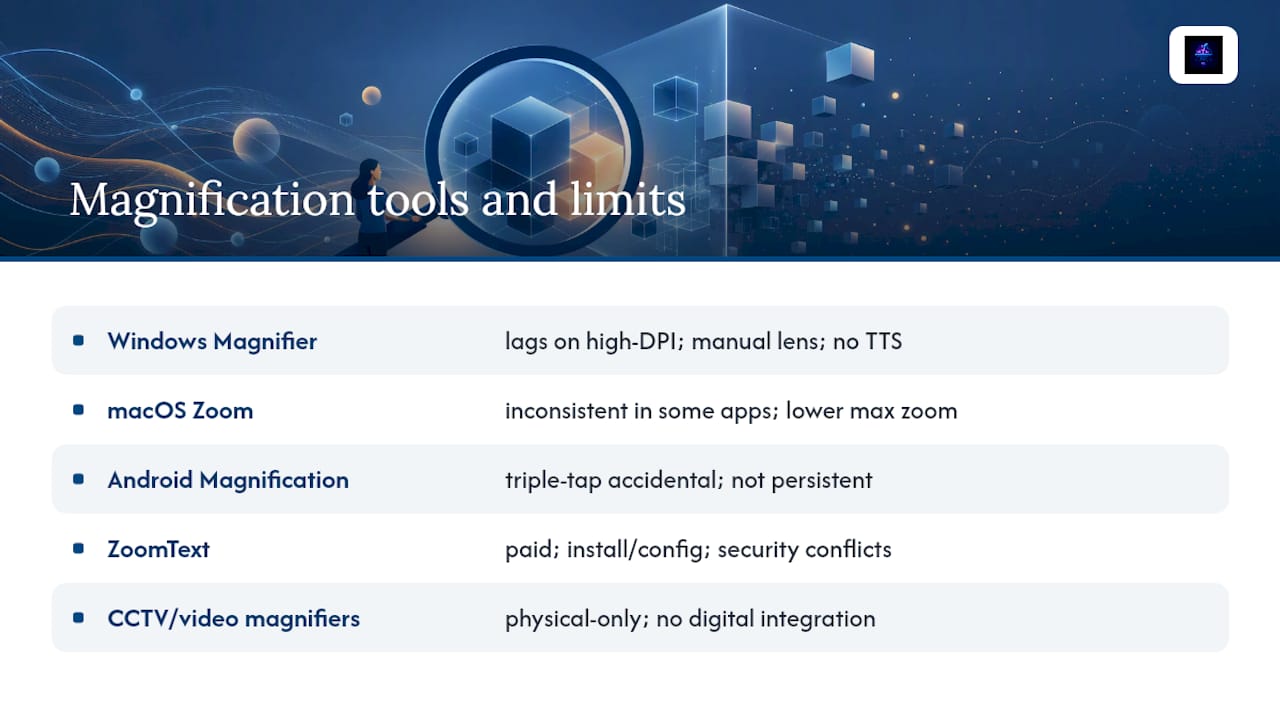
Windows Magnifier (built into Windows 10 and 11) supports full-screen, lens, and docked modes. It follows the keyboard focus and mouse pointer. Its limits: it can lag on high-DPI displays, its lens mode requires manual repositioning, and it has no built-in reading or text-to-speech integration. Color inversion is available but applies globally, which distorts images.
macOS Zoom (built into System Preferences > Accessibility) offers smooth zoom with keyboard shortcuts and can follow the keyboard focus. Its limits: zoom behavior in some third-party apps is inconsistent, and the maximum zoom level is lower than dedicated software.
iOS Zoom (Settings > Accessibility > Zoom) provides full-screen or windowed zoom with gesture control. Its limits: gesture conflicts between Zoom and app-level swipe gestures are common, and the windowed zoom panel can obscure content.
Android Magnification gestures (Settings > Accessibility > Magnification) allow triple-tap to zoom and drag to pan. Its limits: the triple-tap gesture is easy to trigger accidentally, and magnification does not persist across app switches in all Android versions.
ZoomText is a dedicated Windows magnification and screen-reading product. It offers magnification up to 60× with smooth tracking, speech output, and AppReader for document reading. Its limits: it is a paid third-party product, requires installation and configuration, and can conflict with some enterprise security software. It also cannot fix underlying application design problems, such as non-semantic HTML or hidden focus indicators.
CCTV / video magnifiers are hardware units that magnify physical documents via camera. Magnification ranges vary by model, with many systems offering roughly 1× to 16× or higher for specialized units. Their limits are categorical: they work only with physical materials, have no digital integration, and cannot reflow text or interact with software.
The American Foundation for the Blind notes that even the most capable magnifiers cannot fully compensate for poorly designed applications with hidden menus or non-semantic UI. That ceiling is a design problem, not a tool problem.
Combined tool setups (magnifier plus screen reader, or magnifier plus high-contrast mode) can create interaction conflicts. High-contrast mode in Windows can override custom application color schemes in ways that break color-coded UI. Running ZoomText alongside a screen reader requires careful configuration to avoid duplicate speech output or focus conflicts.
For a broader look at how low-vision users combine these tools in daily workflows, the digital access strategies for visually impaired users overview covers the full assistive technology stack.
How can developers fix the biggest magnification problems?
The highest-impact fixes are reflow-friendly layouts, large tappable targets, visible keyboard focus, and keyboard access to every control. None of these require exotic techniques; they require discipline in implementation.
-
Implement CSS reflow so content rewraps at 400% zoom. Use relative units (rem, em, %) instead of fixed pixel widths. Avoid
overflow: hiddenon text containers. Test at 320px viewport width, which is the WCAG 1.4.10 reference condition. A layout that works at 320px wide will reflow correctly for most magnifier users. -
Set minimum touch and click target sizes. WCAG 2.5.5 recommends at least 44×44 CSS pixels for interactive controls. Buttons, links, and form inputs that fall below this threshold become difficult to activate under magnification when motor precision is reduced.
-
Make focus styles visible and high-contrast. The default browser focus outline is often suppressed by CSS resets. Restore it with a custom style: at minimum, a 2px solid outline in a color that meets 3:1 contrast against the adjacent background, per WCAG 2.4.7 and the enhanced 2.4.11 (Focus Appearance) in WCAG 2.2.
-
Provide keyboard access to every interactive control. Menus, ribbons, modal dialogs, and custom widgets must be fully operable by keyboard. Tab order should follow visual reading order. Skip links at the top of the page let magnifier users jump past repeated navigation without panning through it.
-
Avoid gesture-only controls. Any interaction that requires a swipe, pinch, or drag must have a single-pointer or keyboard alternative, per WCAG 2.5.1. This is especially important in web applications where custom drag-and-drop interfaces are common.
-
Use semantic HTML and ARIA roles correctly. Screen magnifiers that include speech output (like ZoomText) rely on semantic markup to announce element roles and states. A
<div>styled as a button but lackingrole="button"and keyboard event handlers will be invisible to combined magnifier/reader setups. -
Avoid fixed-position overlays that obscure content. Sticky headers, cookie banners, and chat widgets that remain fixed on screen can cover the magnified viewport region, hiding content that users cannot easily scroll away from.
-
Test with actual magnifier software at multiple zoom levels. Run QA checks at 200%, 300%, and 400% zoom using Windows Magnifier, macOS Zoom, and iOS Zoom. Record whether reflow occurs, whether focus is visible, and whether all controls are reachable without horizontal scrolling. Mobile testing matters: iOS and Android magnification behaviors differ from desktop.
Pro Tip: Programmatically sync the magnifier viewport to the keyboard caret during text input. Research on interface augmentation tools like MagPro shows that keeping commands and the caret within the current viewport reduces panning effort significantly during editing tasks. In practice, this means ensuring your text fields and rich-text editors scroll the caret into view on every keystroke, rather than letting it drift off-screen.
For a structured checklist of format-specific accessibility gaps, including PDFs and ebooks, the common accessibility gaps in ebooks guide covers the document-level fixes that complement these interface-level changes.
Practical settings and workflows for low-vision users
The single best first step: try a lower magnification level on a larger monitor or with a reflowable document format before assuming you need maximum zoom. Many users default to high magnification out of habit when a moderate level on a larger screen, or a reformatted document, would reduce panning significantly.
For reading long text:
- Use browser reader mode (available in Firefox, Safari, and Edge) to strip away navigation and reflow text into a single column before magnifying.
- Increase the browser's default font size in settings rather than relying entirely on the magnifier. This reduces how much zoom the magnifier needs to apply.
- Request accessible or reflowable document formats (HTML or tagged PDF) from publishers or employers when you receive fixed-layout PDFs.
For editing documents:
- In full-screen magnification mode, use keyboard shortcuts to navigate rather than the mouse. Arrow keys, Tab, and application-specific shortcuts keep the caret in view more reliably than mouse clicks.
- In Word and Google Docs, use the document outline panel to jump between sections without panning through the full document.
For browsing dynamic web apps:
- Switch to keyboard navigation (Tab, Enter, arrow keys) in web applications with complex menus. This keeps the magnifier viewport anchored to the focused element.
- If a site's menus are inaccessible under magnification, try zooming out temporarily to activate a menu, then zooming back in.
For watching video:
- Use picture-in-picture mode where available so the video stays in a fixed position while you magnify other content.
- Enable captions to reduce reliance on reading small on-screen text.
For filling forms:
- Use the Tab key to move between fields rather than clicking. This keeps the caret and focus visible within the magnified viewport.
- If a form times out, request an extended time limit as an accessibility accommodation.
Keyboard and navigation shortcuts (generic across common OSes):
- Most OS magnifiers support a keyboard shortcut to zoom in and out without touching the mouse (typically a modifier key plus/minus).
- Most magnifiers support a shortcut to toggle between modes (full-screen vs. lens) without opening settings.
When to request alternatives: If a site or application consistently fails under magnification, you have grounds to request an accessible alternative. Reasonable asks include: a reflowable version of a PDF, a keyboard-accessible version of a gesture-only interface, or an audio version of long-form content. Under the Americans with Disabilities Act, employers and public-facing organizations have obligations to provide accessible formats on request.
When is accessible audio a better option than magnification?
Audio is a better primary option when the task involves long-form reading, dense documents, or persistent navigation failures that no magnifier setting can fix. It's a complement, not a universal replacement, because visual inspection is still required for images, spatial layouts, math, and diagrams.
Where audio works better than magnification:
- Long-form reading (books, reports, articles) where panning through magnified text creates sustained motor and cognitive load.
- Dense documents where the two-direction scrolling problem makes reading genuinely impractical.
- Multitasking situations where listening while doing something else is more efficient than reading magnified text.
- Situations where consistent line and paragraph continuity matters, since audio preserves the author's intended reading order without viewport interruption.
Where audio doesn't replace visual access:
- Images, charts, graphs, and spatial layouts require visual inspection or a separate audio description.
- Math notation, code, and tables are difficult to convey in linear audio without specialized markup.
- Any task requiring visual confirmation of layout, color, or position.
For readers who find magnification consistently burdensome for long-form content, Coreforgeaudio offers human-narrated audiobooks with accessibility features built in, including adjustable narration speeds and dyslexia-friendly visual UI. It's a mission-aligned option for the specific scenario where magnification creates unacceptable reading friction. The screen readers and audio access overview explains how audio and visual access tools work together in practice.
The gap between what magnification promises and what it actually delivers
Screen magnification is genuinely useful. For many low-vision users, it's the difference between being able to work and not. But the technology is often oversold as a complete accessibility solution, and that framing does real harm.
The research tells a more complicated story. Reading speeds between modes aren't dramatically different, which sounds reassuring until you realize the study conditions used well-designed test content. Real-world applications, with their fixed-width layouts, gesture-only menus, and tiny click targets, are far less forgiving. The panning burden in a poorly designed enterprise web app at 4× zoom is not a minor inconvenience; it's the kind of friction that makes a task take three times as long and leaves users exhausted.
What the research also shows, and what most accessibility checklists underemphasize, is that the motor strategy differences between full-screen and lens mode are significant enough to affect how interfaces should be designed. Full-screen mode users navigate more by keyboard; lens mode users navigate more by mouse. An interface that works well for one group may be genuinely harder for the other. Testing with only one magnification mode, or only one type of user, misses half the picture.
The practical implication: real-user testing with low-vision participants is not optional polish. It's the only way to find the failure modes that automated accessibility checkers and developer self-testing consistently miss. Good participant feedback tells you where the panning burden peaks, which controls fall outside the viewport, and whether the focus indicator is actually visible at the zoom level the user prefers, not the zoom level you tested at.
Coreforgeaudio offers a listening-first alternative for reading tasks
Screen magnification solves a lot, but for long-form reading, the panning and context-loss problems are structural. No setting fully eliminates them when the underlying content doesn't reflow.
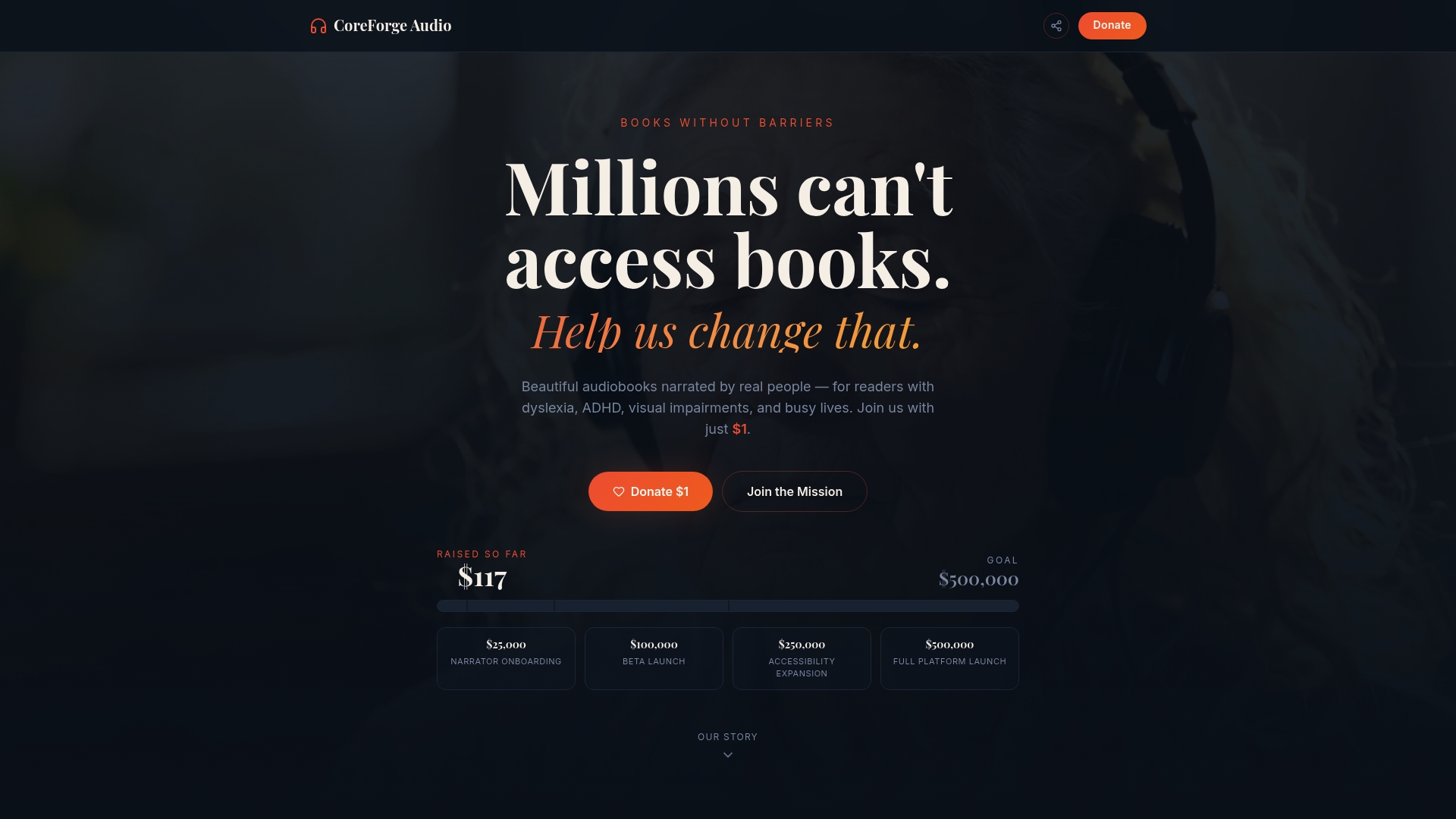
Coreforgeaudio provides human-narrated audiobooks with accessibility features designed specifically for readers with visual impairments, dyslexia, ADHD, and related barriers. The platform eliminates panning entirely for long-form reading, reduces visual fatigue, and supports adjustable narration speeds so listeners control the pace. For users who spend significant time fighting magnification limitations on books, reports, or manuals, audio is a direct solution to the specific problems this guide has covered.
The platform is currently in its fundraising phase, with early-access reward tiers available. To learn more or to support accessible audio for readers who need it, visit Coreforgeaudio and explore the current campaign. For a broader look at how audio platforms compare on accessibility features, the accessible audio content platforms guide is a useful next read.
Sources
The sources below are the primary references cited in this guide. The NIH/PMC and eScholarship studies are the best starting points for empirical evidence; the W3C and Deque resources are the authoritative references for standards-based implementation work.
- Screen Magnification for Readers with Low Vision: A Study on Usability and Performance
- Deque University: 1.4.10 reflow
- Screen Magnification Systems | American Foundation for the Blind
- Magnification - UCI Disability Services Center
- Escholarship
- The Usability of Magnification Methods: A Comparative Study Between Screen Magnifiers and Responsive Web Design (Springer)