

Audiobook apps accessibility features are the built-in tools and settings that allow people with dyslexia, visual impairments, ADHD, or other learning differences to listen to books without friction. The right combination of screen reader support, adjustable playback, and interface customization transforms a standard app into a genuinely usable one. Apps like Libby, Audible, EasyAudioBook, and AudioShelf each approach this differently, and knowing what to look for saves hours of frustration. Device-level accessibility tools like iOS VoiceOver and Android TalkBack work alongside these apps, but only when the app itself is built to support them. This guide walks you through every layer of accessible audiobook use, from core features to app comparisons to troubleshooting.
What are the essential accessibility features in audiobook apps?
Accessible audiobook apps share a core set of features that separate genuinely usable tools from apps that technically meet a checkbox. Understanding these features helps you evaluate any app before committing to it.
Interface design that works for everyone
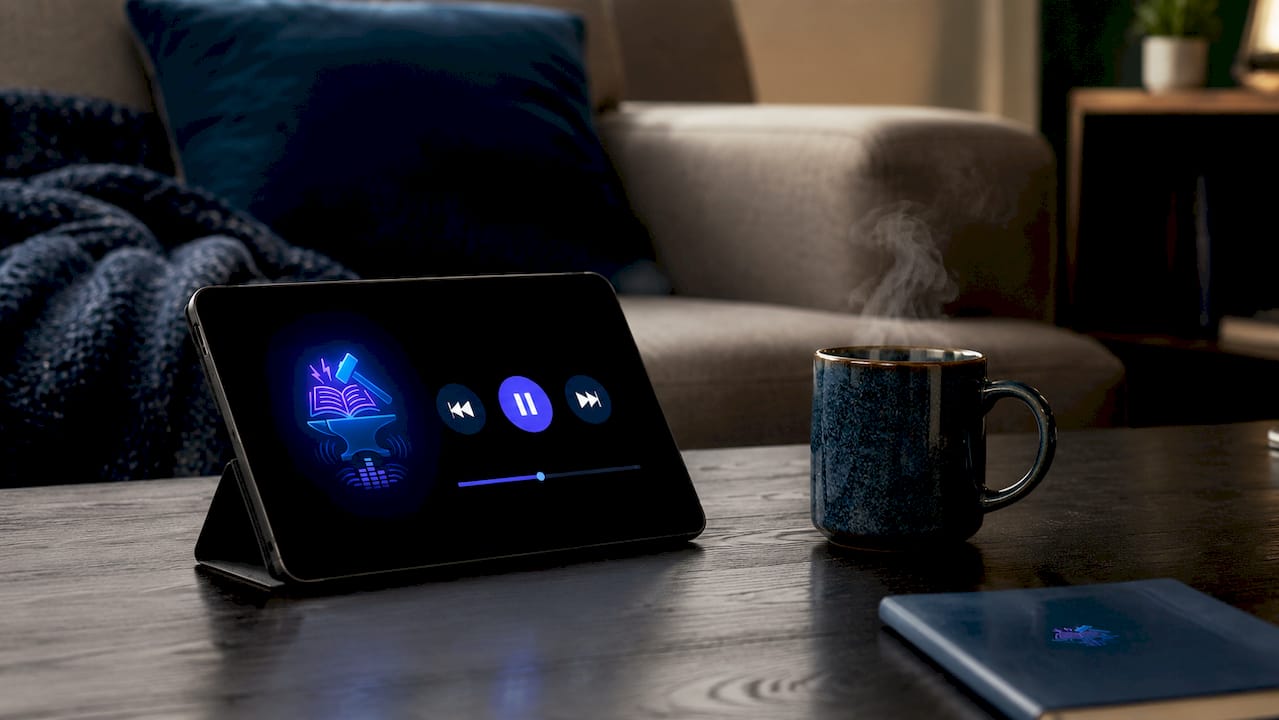
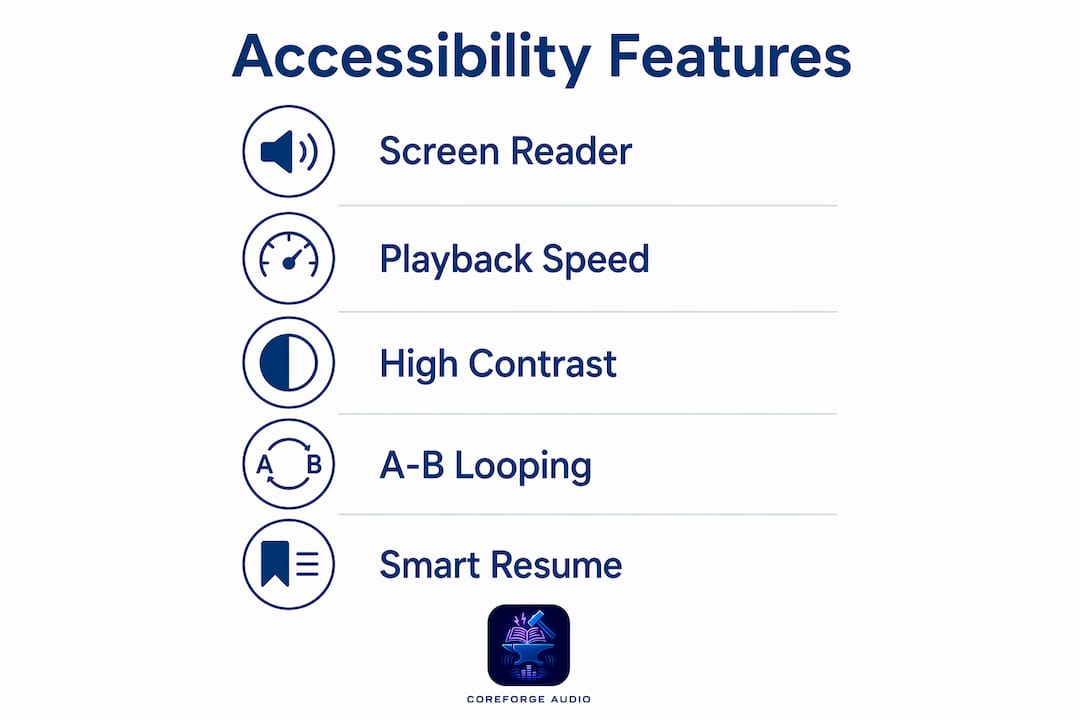
Large, high-contrast controls are the foundation. EasyAudioBook uses big buttons and a two-screen navigation structure specifically to reduce the visual and motor demands of finding playback controls. This matters because small tap targets force users with low vision or motor impairments to attempt multiple taps to perform a single action, which compounds frustration over a long listening session. Dark mode and adjustable color contrast settings extend this further, reducing eye strain for users with light sensitivity or certain visual conditions. Dyslexia-friendly fonts, such as OpenDyslexic, reduce letter confusion by weighting characters at the bottom, making them easier to distinguish at a glance.
Playback controls that adapt to your pace
Configurable playback speed is non-negotiable for users with learning differences. Slowing narration to 0.75x gives dyslexic listeners time to process language, while speeding up to 1.5x or 2x suits users who absorb audio quickly. Adjustable skip intervals let you jump back 10, 30, or 60 seconds to replay a missed passage without scrubbing through a timeline. Configurable skip and sleep timers directly reduce cognitive load by helping users recover context after interruptions. EasyAudioBook defaults to a 2-minute skip and a 30-minute sleep timer, which are practical starting points for most users.
Screen reader and keyboard support
Screen reader integration is what makes an app usable without sight. AudioShelf supports NVDA and JAWS with full keyboard hotkey control, meaning a visually impaired user on Windows can operate every function without touching a mouse. iOS VoiceOver and Android TalkBack require apps to label every button and control correctly. When an app skips this step, screen readers announce "button" with no context, which makes navigation nearly impossible.
Advanced features for comprehension and retention
A-B looping lets you set a start and end point within a chapter and replay that segment repeatedly. AudioShelf's A-B loop and smart resume rewind reduce frustration for users with ADHD or dyslexia who need to revisit dense passages. Smart resume automatically rewinds a few seconds when you restart a paused session, so you never lose your place mid-sentence.
Pro Tip: Before downloading any app, search its name alongside "VoiceOver" or "TalkBack" in your device's app store reviews. Real user feedback on screen reader compatibility is more reliable than any official feature list.
How to navigate audiobook apps when you have visual impairments or learning differences
Knowing a feature exists and knowing how to activate it are two different things. Here is a practical sequence for getting the most out of the apps most commonly used by people with disabilities.
-
Enable your device screen reader first. On iPhone, go to Settings, Accessibility, VoiceOver, and toggle it on. On Android, go to Settings, Accessibility, TalkBack. Do this before opening your audiobook app. Libro.fm uses iOS VoiceOver with custom actions, meaning once VoiceOver is active, the app surfaces additional gesture-based controls that are invisible in standard use.
-
Open Libby and configure playback settings immediately. Libby's accessibility documentation covers screen reader support, playback control, and UI adjustments in detail. Go to the player screen, tap the three-dot menu, and set your preferred playback speed and skip duration before you start your first chapter. This prevents you from having to interrupt listening to hunt for settings.
-
In Audible, customize your jump-back time. The Audible iOS app allows jump-back adjustments up to 90 seconds. Open the player, tap the settings gear, and set jump-back to 30 or 60 seconds if you frequently miss passages. Audible's two-screen navigation structure also works well with VoiceOver once you learn the swipe patterns.
-
Set up EasyAudioBook for low-vision use. The app's large button layout means most controls are reachable with one tap. Adjust the skip duration in settings to match your listening style. If you tend to lose focus mid-chapter, set the sleep timer to 20 minutes so the app pauses automatically and you can resume without searching for your last position.
-
Use AudioShelf keyboard shortcuts on Windows. AudioShelf maps playback functions to keyboard hotkeys, so you can play, pause, skip, and loop without leaving the keyboard. Users who rely on NVDA or JAWS will find the app's screen reader semantics significantly more complete than most general-purpose audiobook players.
-
Adjust Dynamic Type and display settings at the system level. Both iOS and Android allow you to increase system font size, which carries over into apps that support Dynamic Type. Libro.fm audits font scales and tap target sizes routinely, so system-level text size changes display correctly within the app.
Pro Tip: If an app loses your position after a crash or update, check whether it has a "smart resume" or "last position" setting in its player menu. AudioShelf's smart resume rewind is enabled by default, but some apps require you to turn it on manually.
Comparing accessibility options across popular audiobook apps
Not every app treats accessibility with the same depth. This comparison covers the four apps most relevant to users with disabilities.
| App | Screen reader support | Playback customization | UI accommodations | Best for |
|---|---|---|---|---|
| Libby | iOS VoiceOver, Android TalkBack | Speed, skip intervals, sleep timer | High contrast, large text | Library users, general accessibility |
| Audible | iOS VoiceOver, limited TalkBack | Jump-back up to 90 seconds, speed | Standard dark mode | Mainstream users with low vision |
| EasyAudioBook | Basic VoiceOver support | Configurable skip and sleep timer | Big buttons, two-screen layout | Low vision, motor impairments |
| AudioShelf | NVDA, JAWS, full keyboard control | A-B loop, smart resume, speed | Keyboard-driven UI | Windows users, blind users |
A few distinctions are worth calling out beyond the table. Libby is the only app in this group backed by a public library network, which means free access to thousands of titles without a subscription. Its accessibility section is actively maintained, with documentation updated through late 2025. That level of ongoing support is rare and signals genuine organizational commitment.
AudioShelf stands apart for Windows users who depend on NVDA or JAWS. Most audiobook apps are built for mobile first, which leaves desktop screen reader users with poor experiences. AudioShelf fills that gap directly.
EasyAudioBook is the most opinionated design in this group. Its two-screen structure removes the clutter that makes standard players hard to use for people with low vision or cognitive differences. The tradeoff is a smaller library and fewer advanced features. For users who need simplicity above all else, that tradeoff is worth it.
Good accessibility requires both assistive tech integration and UI usability accommodations. An app that supports VoiceOver but has tiny tap targets still fails users with motor impairments. Evaluate both layers when choosing your app.
Troubleshooting common issues and expert tips for accessible audiobook use
Even well-designed apps produce friction. These are the most common problems and how to resolve them.
Lost position after an update or crash. Most apps store your last position locally, and an update can occasionally reset this. AudioShelf's smart resume feature minimizes this risk, but if you lose your place, check the app's "history" or "recently played" section before scrubbing manually. If the app has a cloud sync option, enable it so your position saves to a server rather than only to your device.
Screen reader stops announcing controls. This usually happens after an app update that breaks accessibility labels. The fix is to close the app fully, restart your screen reader, and reopen the app. If the problem persists, check whether an updated version of the app is available. Developers who prioritize accessibility, like Libro.fm, typically patch these regressions quickly.
Playback speed resets between sessions. Some apps do not save speed preferences per book. Set your preferred speed immediately after opening a new title, and check whether the app has a "default speed" setting in its global preferences rather than only in the player.
Cognitive overload from complex menus. If an app's interface feels overwhelming, look for a simplified or "basic" mode. EasyAudioBook is designed from the ground up for this use case. Alternatively, use your device's Guided Access feature on iOS to lock the screen to the player view and disable distracting controls.
"Providing configurable playback features accommodates diverse cognitive needs and reduces user frustration in audiobook experiences." — EasyAudioBook accessibility documentation
For caregivers managing audiobook access for others, AudioShelf supports remote metadata editing, which lets you organize a library and set default playback preferences without handing over device control. This is particularly useful for educators or family members supporting a listener with significant cognitive or motor differences.
Feedback to developers matters more than most users realize. Accessibility regressions get fixed faster when users report them with specific details: which screen reader, which OS version, and which exact control failed. Apps like Libby and Libro.fm have public accessibility contacts precisely because they treat this feedback as a product input, not a complaint.
Key takeaways
The most effective audiobook accessibility setup combines device-level screen reader activation with an app that supports configurable playback, high-contrast UI, and smart resume.
| Point | Details |
|---|---|
| Screen reader setup comes first | Activate iOS VoiceOver or Android TalkBack before opening your audiobook app for full integration. |
| Configurable playback reduces cognitive load | Adjustable skip intervals and sleep timers help users recover context after interruptions without frustration. |
| App choice depends on platform and need | AudioShelf leads for Windows screen reader users; Libby leads for library access and general accessibility. |
| UI design matters as much as assistive tech | Big tap targets, dark mode, and dyslexia-friendly fonts reduce friction independent of screen reader support. |
| Feedback drives accessibility improvements | Reporting specific screen reader failures to developers accelerates fixes and improves the app for all users. |
Why accessibility-first design is the standard, not the exception
I've spent years looking at how audiobook apps handle accessibility, and the pattern is consistent: apps that treat accessibility as an afterthought produce experiences that are technically compliant but practically unusable. The difference between an app that labels its buttons correctly and one that actually works with VoiceOver is enormous, and most users discover that gap only after they've already committed to a platform.
What changed my thinking was seeing how accessibility-first design improves the experience for everyone, not just users with disabilities. Simplified navigation, larger tap targets, and configurable playback are features that any listener benefits from. Libro.fm's approach of auditing contrast ratios and tap target sizes as a routine part of development, rather than a one-time compliance check, is the model every app should follow.
The honest challenge is that most app teams don't have users with disabilities in their testing cycles. That's where advocacy from the community matters. When you report a broken screen reader label or a playback setting that resets, you're contributing to a product that works better for everyone who comes after you. The apps that respond to that feedback, Libby, Libro.fm, AudioShelf, are the ones worth investing your time in.
AI narration is entering this space, and the accessibility implications are real. Synthetic voices can be generated at any speed and in any language, which expands access significantly. But human narration carries emotional cues that aid comprehension for many dyslexic and ADHD listeners. The future of accessible audiobooks for the visually impaired will likely combine both, with users choosing based on their specific processing needs.
— Sarmed
Discover accessible audiobooks built for real listening needs
Coreforgeaudio is a nonprofit-focused platform built specifically for people who face reading barriers, including dyslexia, ADHD, and visual impairments. Every title on the platform features human narration, adjustable playback speed, dyslexia-friendly fonts, and multilingual support, all designed to work alongside the screen readers and accessibility tools covered in this guide.
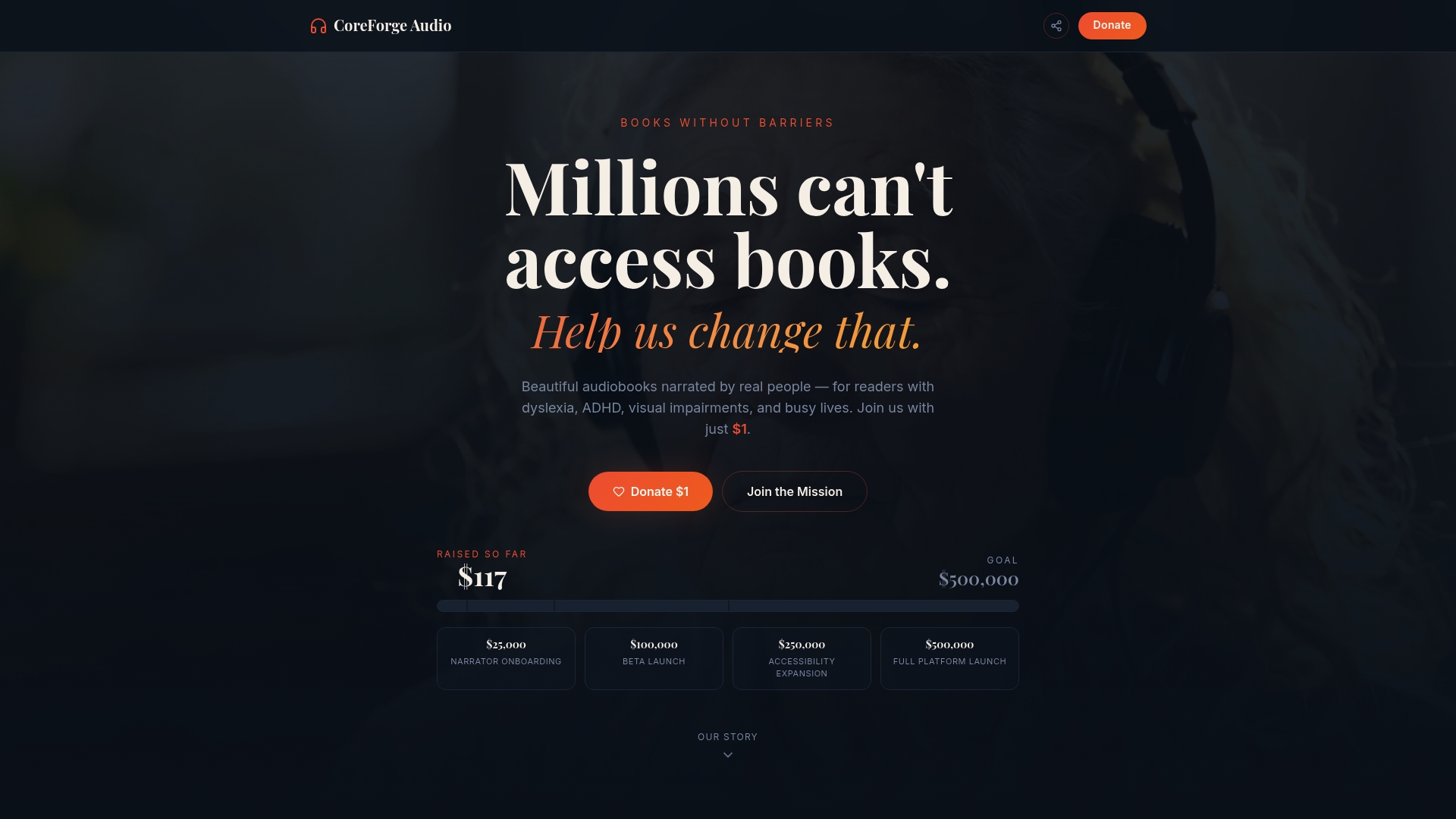
Coreforgeaudio is actively fundraising to expand its library and accessibility features, with full transparency on how every dollar supports licensing, development, and audiobook accessibility options. If you want audiobooks that treat accessibility as the starting point rather than an add-on, Coreforgeaudio is worth exploring. Visit the platform to learn more and support the mission.
FAQ
What accessibility features should I look for in an audiobook app?
Look for screen reader support (VoiceOver or TalkBack), configurable playback speed, adjustable skip intervals, sleep timers, high-contrast UI, and dyslexia-friendly fonts. Apps like Libby, AudioShelf, and EasyAudioBook each cover different parts of this list.
How do I navigate an audiobook app if I'm visually impaired?
Enable iOS VoiceOver or Android TalkBack at the device level before opening your app, then verify that all player controls are announced correctly. AudioShelf on Windows offers full keyboard navigation and NVDA/JAWS support for users who prefer a desktop experience.
Which audiobook app is best for users with dyslexia?
EasyAudioBook's simplified two-screen layout and configurable skip duration make it strong for dyslexic users who need low-clutter interfaces. Libro.fm also supports Dynamic Type and dyslexia-friendly fonts with routine accessibility audits.
Can I use audiobook apps with ADHD-friendly features?
Yes. AudioShelf's A-B loop and smart resume rewind are specifically useful for ADHD listeners who need to replay sections or recover context after distraction. Configurable sleep timers in EasyAudioBook and Libby also prevent lost progress during interrupted sessions.
How do I report an accessibility bug in an audiobook app?
Contact the app's support team with your screen reader name, OS version, and a description of which control failed. Libby and Libro.fm both maintain dedicated accessibility contacts and treat these reports as product feedback rather than general complaints.
Recommended
- Designing an accessibility-first audiobook app: lessons from the build — CoreForge Audio Blog
- Audio Description Features in Audiobook Services: 2026 Guide
- Audiobooks as a lifeline: making literature accessible for the visually impaired — CoreForge Audio Blog
- Top 6 audioflo.ai Audio Alternatives 2026